
Remember that feeling? You’re sprawled on the couch, finally ready to binge-watch that show everyone’s talking about. You tap play… and the little spinning circle of doom appears. The show buffers. Again. And again. You sigh, grab your phone, and start endlessly scrolling through Instagram. Sound familiar? We’ve all been there. It’s like, Arey yaar, why is the Wi-Fi so slow?
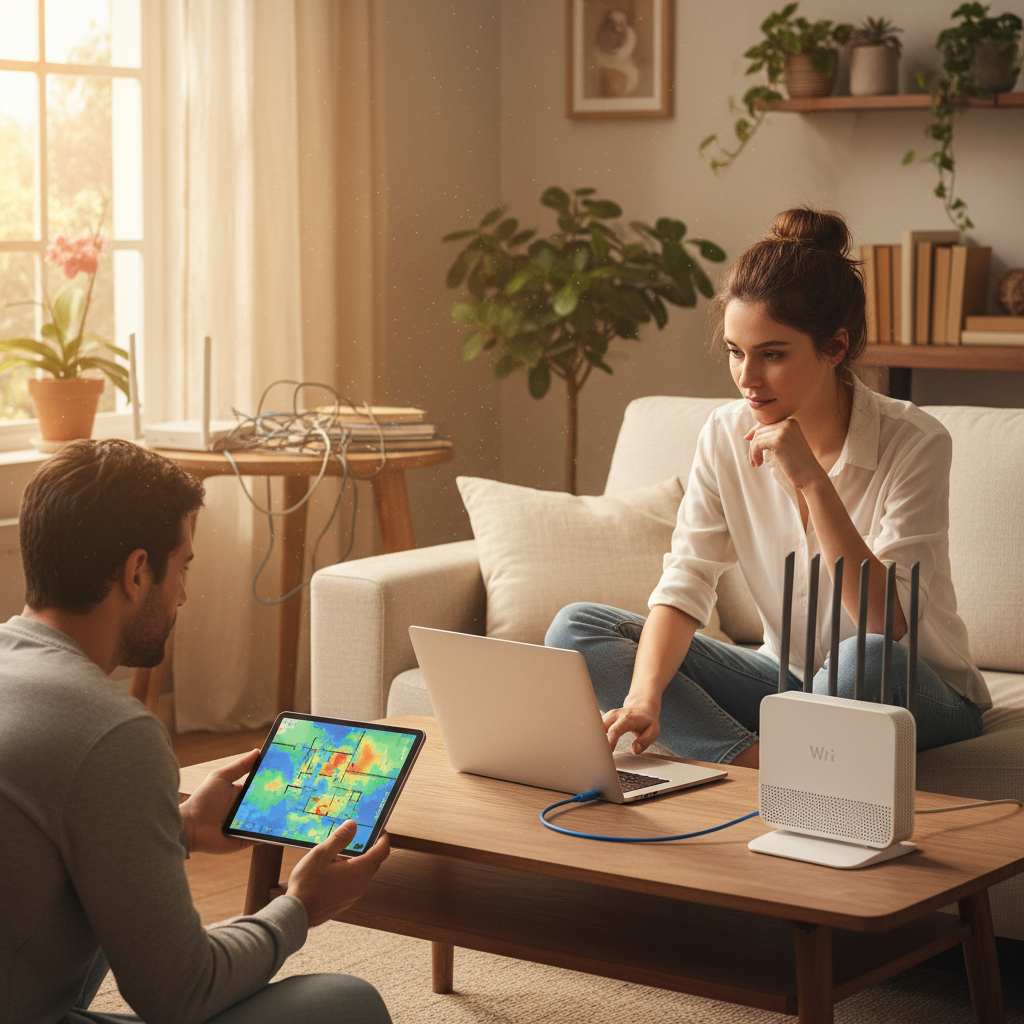
I get it. Slow Wi-Fi is infuriating. It feels like we’re constantly fighting a losing battle against lag, buffering, and dropped connections. But the thing is, most of us don’t really understand how Wi-Fi works. We just know when it doesn’t. Let’s change that, shall we? Because once you understand a few key things, you can actually troubleshoot and speed up your Wi-Fi, without calling the internet provider and spending half a day on the phone.
The Big Picture: Wi-Fi’s Basic Job
At a basic level, Wi-Fi’s job is to connect your devices (phones, laptops, TVs, etc.) to the internet without wires. Think of it like a radio station. Your router is the broadcast tower, sending out signals, and your devices are like radios, receiving those signals and turning them into the content you see and hear. Simple, right? But like any radio station, there are things that can interfere with the signal.
The core concept is this: your router sends out radio waves, and your devices “listen” for them. These waves carry the data – the videos, the web pages, the cat videos – that you want to access. Your device then “translates” these radio waves back into usable information.
The Router: Your Home’s Internet Hub
Let’s dive a little deeper. The heart of your home Wi-Fi is the router. It’s usually that little box tucked away somewhere, maybe behind your TV, or in a closet, that you probably never think about. But it’s the most important part of your Wi-Fi setup. The router connects to your internet service provider (ISP) via a cable (usually coaxial or fiber optic). It then does two main things:
- It creates a local network: Your router acts like a traffic controller, creating a private network within your home. All your devices connect to this network.
- It broadcasts the internet signal: The router uses radio waves to send the internet signal to your devices. This is where Wi-Fi comes into play.
Think of the router as the gatekeeper, controlling who gets to access the internet and how.
The Wireless Connection: Radio Waves at Work
Now, let’s talk about the actual magic: the wireless connection itself. The router uses radio waves, specifically the 2.4 GHz or 5 GHz frequency bands, to communicate with your devices. Think of these like different “lanes” on a highway:
- 2.4 GHz: This band has a longer range and can penetrate walls better. However, it’s also more prone to interference from other devices, like microwaves, Bluetooth devices, and even your neighbor’s Wi-Fi. It’s like a slower, but more resilient, lane.
- 5 GHz: This band offers faster speeds and less interference, but it has a shorter range and struggles more with obstacles like walls. It’s the faster lane but gets blocked more easily.
Your router typically broadcasts on both bands, and your devices automatically choose the best one. However, you can often manually select which band your devices use in your router’s settings. I’ll show you how later.
The Devices: Decoding the Signal
Your phone, laptop, smart TV, or whatever you’re using to connect to the internet has a built-in Wi-Fi adapter. This adapter is like a little antenna and translator. It receives the radio waves from your router, decodes the information they carry, and then displays it on your screen in a way you can understand. It’s like your device is the radio, tuning in to the right station.
What Slows Down Your Wi-Fi? Common Culprits
Okay, so now you know the basics. But why is your Wi-Fi sometimes slow? Here are the most common reasons:
1. Distance from the Router
This is a big one. The further away you are from your router, the weaker the signal becomes. Think of it like shouting. The closer you are, the louder and clearer you sound. The further you are, the more your voice fades and gets distorted. Walls and other obstacles can make things worse.
2. Obstacles in the Way
Walls, especially thick concrete or brick walls, can absorb or block the Wi-Fi signal. Metal objects, like mirrors or appliances, can also interfere. Even water (think aquariums) can disrupt the signal.
3. Interference
As mentioned earlier, other devices using the same frequency bands can cause interference. This is like multiple radio stations broadcasting on the same channel, causing static. Common culprits include:
- Microwaves
- Bluetooth devices (speakers, headphones)
- Cordless phones
- Neighbor’s Wi-Fi (especially on the 2.4 GHz band)
4. Too Many Devices
If you have a lot of devices connected to your Wi-Fi at the same time, it can slow things down. Think of it like a highway during rush hour. The more cars (devices) there are, the slower the traffic (internet) moves.
5. Router Problems
Sometimes, the router itself is the problem. It might be outdated, overloaded, or just need a reboot. Old routers often use older Wi-Fi standards (like 802.11n), which are slower than newer standards (like 802.11ac or Wi-Fi 6/6E). I’ll help you figure out if this is the issue.
6. Internet Service Provider (ISP) Issues
Sometimes, the problem isn’t your Wi-Fi, but your internet connection itself. If your ISP is experiencing an outage or has congestion on its network, your internet speed will be slow, regardless of your Wi-Fi setup. Check your ISP’s website or social media for updates.
How to Make Your Wi-Fi Faster: Practical Solutions
Now for the good part. Here’s how you can actually speed up your Wi-Fi, no tech degree required:
1. Router Placement is Key
The single most effective thing you can do is optimize the placement of your router. Here’s how:
- Central Location: Place your router in a central location in your home, as high up as possible. This helps to distribute the signal evenly.
- Elevate: Put the router on a shelf or table, not on the floor. This improves signal propagation.
- Avoid Obstacles: Keep your router away from walls, metal objects, and appliances.
- Test Different Spots: Experiment with different locations and use a Wi-Fi analyzer app (more on that later) to see which spot gives you the best signal strength.
2. Reduce Interference
Try these steps to minimize interference:
- Change Channels: Most routers automatically choose a Wi-Fi channel. However, if there’s a lot of interference, you can manually switch to a less crowded channel. You can use a Wi-Fi analyzer app to see which channels are least congested (more on that in a bit). This is usually done in the router’s settings.
- Move Devices: Move your router away from microwaves, Bluetooth devices, and cordless phones.
- Use 5 GHz: If your devices and router support it, use the 5 GHz band for faster speeds and less interference.
3. Manage Connected Devices
The more devices using the Wi-Fi at the same time, the slower it gets. To manage it:
- Limit Usage: Ask family members to limit their simultaneous use, especially during peak hours.
- Prioritize Devices: Many routers allow you to prioritize certain devices. This means that important devices, like your work laptop or your kids’ online learning devices, get more bandwidth.
- Guest Network: Set up a guest network for visitors. This keeps their devices separate from your main network.
4. Update Your Router Firmware
Router manufacturers regularly release firmware updates to fix bugs, improve performance, and enhance security. Check your router’s settings or the manufacturer’s website for updates and install them. This is often the forgotten fix.
5. Reboot Your Router (The Classic Fix)
Sometimes, a simple reboot is all it takes. Unplug your router, wait 30 seconds, and plug it back in. This clears the router’s memory and can resolve temporary issues.
6. Upgrade Your Router
If your router is old (more than 5 years), it might be time for an upgrade. Newer routers support the latest Wi-Fi standards (like Wi-Fi 6/6E), which offer faster speeds, better range, and improved performance, especially with multiple devices connected. This is an investment, but a worthwhile one.
7. Use a Wi-Fi Analyzer App
A Wi-Fi analyzer app (available for both Android and iOS) can help you diagnose Wi-Fi issues. These apps scan your network and show you:
- The Wi-Fi channels being used by your router and your neighbors’ routers.
- The signal strength of your Wi-Fi.
- Potential sources of interference.
This information can help you identify the best channel to use, pinpoint the cause of Wi-Fi issues, and optimize your router placement. I’ve found a good one, called “Wi-Fi Analyzer”, available in both the Apple and Google app stores – it has a clean interface and does the job well.
8. Consider a Wi-Fi Extender or Mesh System
If you have a large home or a home with thick walls, a Wi-Fi extender or a mesh Wi-Fi system can help extend your Wi-Fi coverage. A Wi-Fi extender simply repeats the Wi-Fi signal, while a mesh system uses multiple nodes to create a more seamless and robust Wi-Fi network. Remember though, extenders can sometimes slow down your Wi-Fi, so think about your needs first. The difference between a simple extender and a mesh system is usually worth the investment.
Mythbusting: Common Wi-Fi Misconceptions
Let’s clear up some common misconceptions about Wi-Fi:
- “More bars mean faster Wi-Fi”: False. Signal strength (the number of bars) doesn’t always equal speed. You can have a strong signal but still experience slow speeds due to interference, congestion, or other factors.
- “Faster internet plan = faster Wi-Fi”: True, up to a point. If you have a slow internet plan, your Wi-Fi speed will be limited by that. But even with a fast plan, your Wi-Fi speed can be bottlenecked by a slow router or interference.
- “My ISP is the problem”: It’s possible, but not always. Before blaming your ISP, try troubleshooting your Wi-Fi setup first. Reboot your router and try these tips first. Often, it’s something fixable in your own home.
- “Wi-Fi is the same as the internet”: Nope. Wi-Fi is just the *connection* between your devices and your router. The *internet* is the global network that your router connects to. Your router provides the Wi-Fi signal.
Why Small Changes Make a Big Difference
Think about how your habits affect your Wi-Fi:
- Morning Routine: Streaming news while you make breakfast, checking emails, and video calls can overload your Wi-Fi.
- Evening Entertainment: Multiple family members streaming movies or playing games at the same time can cause slowdowns.
- Work from Home: Constant video conferencing and large file transfers can stress your Wi-Fi.
By understanding how these usage patterns affect your Wi-Fi, you can adjust your habits and optimize your network. Maybe schedule your big downloads for overnight, or ask your family to coordinate their online activities. This awareness can improve your Wi-Fi experience greatly.
The Future of Wi-Fi (And Why It Matters)
Technology keeps evolving, and so does Wi-Fi. The latest standard, Wi-Fi 7, promises even faster speeds and lower latency. Think even smoother streaming, faster downloads, and better performance for demanding applications like virtual reality and online gaming.
Why should you care? Because as we rely more on the internet for work, entertainment, and communication, a fast and reliable Wi-Fi connection becomes increasingly important. As technology grows, it’ll all depend on a strong, stable network.
Putting It All Together: A Clearer Mental Model
Now, let’s put it all together. Imagine your Wi-Fi as a network of roads:
- Your router is the traffic control center.
- The 2.4 GHz and 5 GHz bands are different lanes on the road.
- Your devices are the cars traveling on those roads.
- Interference is like construction or accidents, slowing down traffic.
- Distance and obstacles are like a long road with many turns or tunnels.
By understanding how these “roads” work, you can diagnose and fix Wi-Fi issues. You can move the traffic control center (router) to a better location, choose the best lane (frequency band) for your devices, and clear away any obstacles or traffic jams (interference). And, you can tell your friends and family how to do it, too!
Frequently Asked Questions
Here are some of the most common questions people ask about Wi-Fi:
- Why is my internet slow, but my speed test is fine?
Your speed test measures the speed between your router and your ISP. If the speed test is fine, the problem is likely with your Wi-Fi. Try the troubleshooting steps above.
- Do Wi-Fi extenders really work?
Yes, but they’re not a perfect solution. They can extend your Wi-Fi coverage, but they can also reduce speeds. Consider a mesh Wi-Fi system for a more seamless experience. This is especially true if you are trying to cover a large area, like if you have a big house.
- Should I use 2.4 GHz or 5 GHz?
Use 5 GHz if you prioritize speed and have a short distance from your router. Use 2.4 GHz if you need better range or are dealing with obstacles like walls. Many routers let your devices switch between the two automatically.
- How often should I reboot my router?
Reboot your router at least once a month, or more often if you experience frequent Wi-Fi problems. It’s like a monthly system check-up.
- Does a new router always improve my Wi-Fi?
Not always, but it often helps. A new router with the latest Wi-Fi standards (like Wi-Fi 6 or Wi-Fi 6E) can offer significant improvements in speed, range, and performance, especially if you have multiple devices connected. It’s a good investment if you notice older router issues.
- Can my neighbor’s Wi-Fi slow down mine?
Yes, especially if they are using the same Wi-Fi channel as you, on the 2.4 GHz band. Using a Wi-Fi analyzer app can help you identify and switch to a less congested channel. You can usually change your channel in your router settings.
- Is Wi-Fi safe?
Generally, yes. Most routers use encryption to protect your data. However, it’s important to use a strong password and keep your router’s firmware updated to minimize security risks. Avoid public Wi-Fi networks whenever possible and use a VPN if you must use them.
- What if nothing works?
If you’ve tried all these steps and still have slow Wi-Fi, it might be time to contact your ISP. There might be an issue with your internet connection or a problem with their equipment. They can run diagnostics and help you troubleshoot. And you might want to look at the related article on Energy System for some more information.
With a little understanding and some simple tweaks, you can transform your frustratingly slow Wi-Fi into a fast and reliable connection that keeps you connected to what matters most.
For more information on the world of electronics and other systems, check out the Energy System home page.