
Ugh, there’s nothing more frustrating than a sluggish internet connection, right? You’re trying to stream a movie, and it keeps buffering. You’re trying to video call your family, and the call drops every few minutes. You’re trying to work, and every webpage takes ages to load. We’ve all been there. It’s like being stuck in digital molasses.
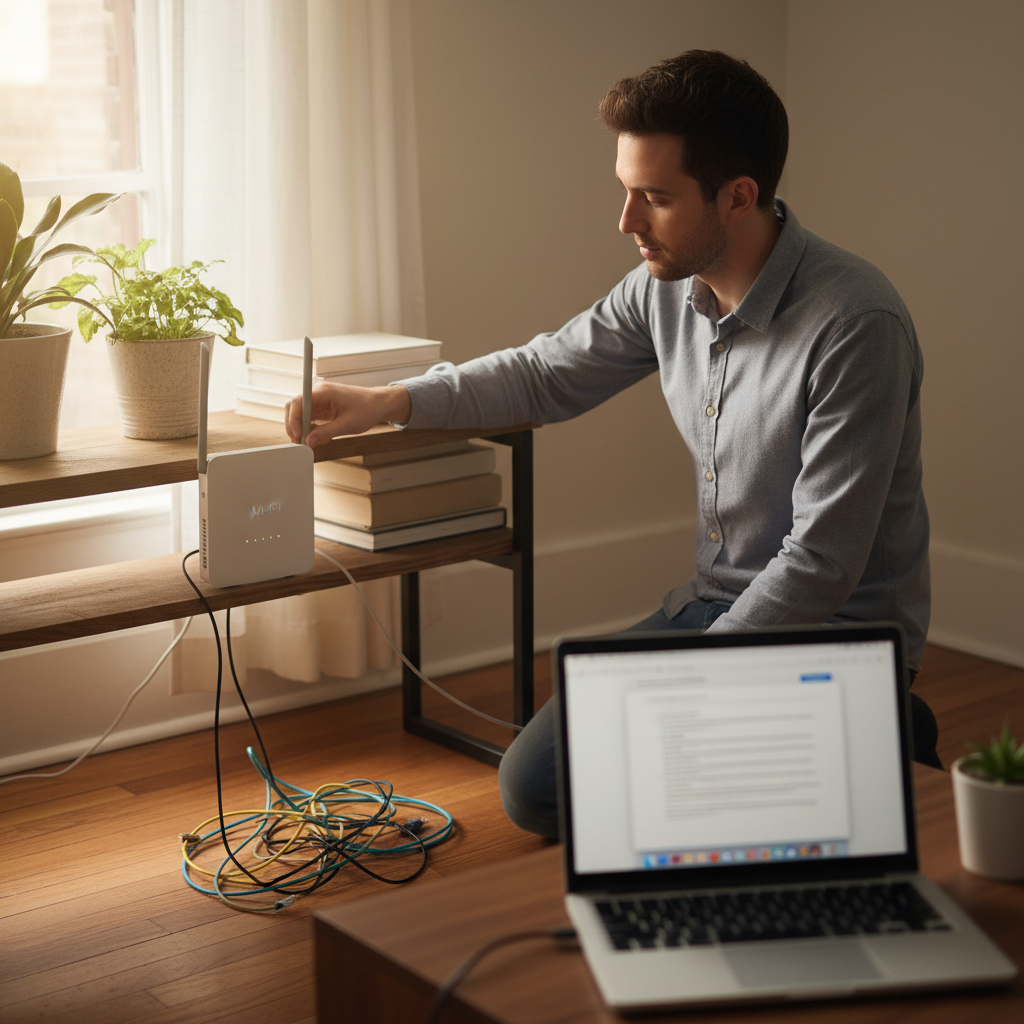
I remember this one time, I was trying to download a crucial work file. I had a deadline, and the progress bar was crawling. I swear, I could’ve walked to the office and back faster than it was downloading. That’s when I realized I needed to get to the bottom of this slow Wi-Fi situation. It turned out to be a combination of things, and I learned a few valuable lessons along the way.
Why Is My Wi-Fi Suddenly So Slow? The Usual Suspects
Before you start pulling your hair out, let’s take a look at the usual suspects behind slow Wi-Fi. Think of it like a detective story. We need to identify the culprits.
- Too Many Devices: This is probably the most common. Your Wi-Fi router has a limited capacity. If you have multiple devices—phones, laptops, smart TVs, gaming consoles, smart home gadgets—all trying to use the internet at once, it can get congested. It’s like a highway during rush hour.
- Router Location: Where’s your router sitting? Is it tucked away in a cupboard, behind a bunch of metal appliances, or far away from where you use the internet the most? Router placement plays a huge role in signal strength.
- Router Age: Routers don’t last forever. Older routers may not support the latest Wi-Fi standards or have the processing power to handle today’s internet speeds and traffic.
- Interference: Wi-Fi signals can be disrupted by other devices that emit radio waves. This includes microwaves, cordless phones, Bluetooth devices, and even your neighbor’s Wi-Fi router.
- Internet Plan: Let’s be honest, sometimes the problem isn’t your Wi-Fi, it’s your internet plan. If you’re paying for a certain speed, but you’re not getting it, that’s an issue with your provider.
- Malware/Viruses: In rare cases, a virus on your computer or phone can slow down your internet speed by using your bandwidth to send data or perform malicious tasks.
So, these are the usual suspects. But don’t worry, we’ll go through them one by one.
Common Mistakes People Make When Troubleshooting Slow Wi-Fi
When your Wi-Fi is acting up, it’s tempting to jump to conclusions and start randomly changing settings. Here’s where many of us go wrong:
- Restarting the Router (but not correctly): Yes, restarting the router is the first thing you should do. But are you unplugging it for a full minute before plugging it back in? Just a quick on-off might not clear the cobwebs.
- Blaming the Internet Provider Immediately: Sometimes, the problem is with your equipment, not your provider. Before you start calling them, try troubleshooting your own setup first.
- Ignoring Router Placement: Too often, people just leave the router where it is, without considering whether it’s the best spot for signal coverage.
- Not Updating Router Firmware: Many people don’t even know that their router has firmware that needs to be updated. Outdated firmware can cause all sorts of problems.
- Assuming Everything Is Fine With The Devices: Sometimes the issue is a specific device, not the whole network. A device might have a background app using bandwidth.
These are the mistakes I’ve made myself, and they wasted a lot of time and patience!
The Real Fix: Step-by-Step Guide to Speeding Up Your Wi-Fi
Alright, let’s get down to the practical part. Here’s how to troubleshoot your slow Wi-Fi and get things back on track. I’ll break it down into easy-to-follow steps.
- Restart Everything: This might sound basic, but it’s the most effective first step. Unplug your modem and your router. Wait a full minute. Then plug the modem back in and wait for it to fully power up (usually a few minutes). Then plug the router back in and wait for it to do the same. This simple reset clears temporary glitches and refreshes the connection.
- Check Your Internet Speed: Use a speed test website like Speedtest by Ookla or Fast.com. Compare the results with the speed you’re paying for. If there’s a big difference, it could indicate a problem with your internet plan or your provider’s service.
- Optimize Router Placement: Move your router to a central location in your home, away from walls, metal objects, and other devices that might cause interference. Place it up high, like on a shelf. Try to visualize how the signal spreads, and position the router to cover the areas where you use the internet most.
- Limit Connected Devices: Temporarily disconnect devices you’re not actively using. If you have a lot of devices connected, it can strain your network. See if the speed improves.
- Update Your Router’s Firmware: This is crucial! Router manufacturers release firmware updates to fix bugs, improve performance, and enhance security. Check your router’s user manual or the manufacturer’s website for instructions on how to update the firmware.
- Change Your Wi-Fi Channel: Routers broadcast Wi-Fi signals on different channels. If your channel is congested, your speed will suffer. You can use a Wi-Fi analyzer app (available for both Android and iOS) to find the least congested channel and change your router’s settings to use it.
- Secure Your Wi-Fi Network: Make sure your Wi-Fi is password-protected. If your network is open, anyone can use it, which will slow down your speed. Also, consider using WPA2 or WPA3 encryption for better security.
- Check for Malware: Run a virus scan on your computer and your phone to make sure there’s no malicious software using your bandwidth.
- Consider Upgrading Your Router: If your router is old (more than 3-4 years), it might be time for an upgrade. Newer routers support the latest Wi-Fi standards (like Wi-Fi 6 or Wi-Fi 6E), which offer faster speeds and better performance.
Following these steps, I’ve managed to fix my own slow Wi-Fi issues a number of times. It’s usually a combination of factors, but this methodical approach helps me pinpoint the culprit and get things back to normal.
When to Call for Help (and When You Can Fix It Yourself)
So, when do you know it’s time to call in the professionals? Here’s a quick guide:
- Try these fixes first: Always attempt the troubleshooting steps I’ve outlined above. You can often resolve the issue yourself.
- Call your internet provider if: You’ve tried everything, and your speed test results are consistently far below what you’re paying for. There might be a problem with their service.
- Consider professional help if: You’re uncomfortable with technical stuff, or you’ve tried everything and the problem persists. An IT professional can assess your network, identify the problem, and recommend solutions.
Long-Term Prevention Tips to Keep Your Wi-Fi Running Smoothly
So, you’ve fixed your slow Wi-Fi. Great! Now, how do you prevent it from happening again? Here are some simple, long-term habits to adopt:
- Regularly Restart Your Router: Make it a weekly habit. Just unplug it for a minute and plug it back in.
- Keep Firmware Updated: Enable automatic firmware updates on your router, or check for updates regularly.
- Monitor Your Network: Keep an eye on the number of devices connected and the overall performance. If you notice a slowdown, start troubleshooting.
- Upgrade Your Equipment When Needed: Don’t wait until your router is ancient. As technology evolves, consider upgrading every few years to take advantage of the latest Wi-Fi standards.
- Choose the Right Internet Plan: Make sure your internet plan meets your needs. If you regularly stream videos or have multiple users, you’ll need a higher speed plan.
- Check your data usage: Review your data usage regularly, especially if you have a data cap. High data usage can cause slowdowns, especially during peak times.
By following these tips, you can keep your Wi-Fi running smoothly and avoid the frustration of a slow internet connection. It’s all about being proactive and staying on top of things.
Frequently Asked Questions About Slow Wi-Fi
Here are some of the most common questions people ask when they’re struggling with slow Wi-Fi:
- Why is my Wi-Fi fast sometimes and slow other times? Wi-Fi speed can fluctuate due to network congestion (more devices using it), interference, or peak usage times.
- How can I tell if my router is old? If your router is more than 3-4 years old, it’s likely an older model. Check the model number and search online to see when it was released.
- Does the router’s location really matter? Yes! The router’s location significantly impacts the Wi-Fi signal range and strength. Central and elevated locations are best.
- Can too many devices slow down my Wi-Fi? Absolutely! Each connected device shares the available bandwidth. The more devices, the slower the speed for each.
- Should I use a Wi-Fi extender? Wi-Fi extenders can help boost the signal in dead zones, but they can also reduce speed. They’re best used as a last resort.
- What’s the difference between 2.4 GHz and 5 GHz Wi-Fi? 5 GHz offers faster speeds but a shorter range. 2.4 GHz has a longer range but is slower and more prone to interference.
- Is my internet provider intentionally slowing down my Wi-Fi? In most cases, no. However, if you’re exceeding your data cap or there’s a technical issue with their equipment, you might experience slower speeds.
Dealing with slow Wi-Fi can be a pain, but with a bit of patience and these practical steps, you can usually diagnose and fix the problem yourself. Now go forth and enjoy a fast, reliable internet connection!
For more home and tech solutions, you can explore the Energy System.