
Ugh, the dreaded spinning wheel of doom. You’re trying to watch a video, and it buffers. You’re trying to send an important email, and it takes forever to load. You’re trying to work, and your connection is about as reliable as that old, rickety bicycle you had as a kid. Sound familiar? I get it. Slow internet is one of those everyday frustrations that can make you want to scream. Trust me, I’ve been there – multiple times!
The Annoying Reality of Slow Internet
It’s usually when you really need the internet that it decides to take a vacation. You’re in the middle of a video call for work, and suddenly, you’re a pixelated robot. Or you’re trying to stream the latest episode of your favorite show, and it’s a constant battle of loading screens. It’s enough to make you throw your hands up in exasperation. We live in a world where a fast, stable internet connection is practically a basic human right. So, when it’s slow, it feels like a major problem.
And it’s not just the inconvenience. Slow internet can also be a real productivity killer. Think of all the time wasted waiting for pages to load, files to download, or videos to buffer. That time adds up, affecting your work, your studies, and even your downtime. It’s like having a car that can only go 20 miles per hour on the highway. Frustrating, right?
Why Is My Internet So Slow? The Usual Suspects
Okay, so why is this happening? Before you start blaming the internet gods, let’s look at some of the usual suspects. The good news is, most of the time, the problem is something you can fix yourself.
1. Your Internet Plan
Let’s be real, are you paying for a connection that’s too slow for what you’re doing? If you’re sharing your connection with multiple devices or are a heavy user (streaming, gaming, downloading large files), you might need more bandwidth. Think of it like a highway. If everyone’s trying to use the same two lanes, traffic is going to crawl.
2. The Router’s Not Happy
Your router is the gatekeeper of your internet. It directs all the traffic in and out of your home. Like any piece of tech, it can get overloaded, overheat, or just plain malfunction. Sometimes, a simple reboot is all it needs. But more on that later.
3. Too Many Devices, Too Little Bandwidth
Every device connected to your Wi-Fi is using some of your bandwidth. If your family is streaming movies, playing online games, and video calling all at the same time, your connection will suffer. It’s like having too many cars trying to use a single lane on the highway.
4. Interference is a Pain
Wi-Fi signals can be easily disrupted. Walls, appliances (microwaves are notorious), and other electronic devices can interfere with the signal. The further you are from your router, the weaker the signal gets.
5. Your Devices Need a Tune-Up
Sometimes, the problem isn’t your internet connection itself, but your devices. Outdated software, too many background apps, or a clogged cache can slow things down. It’s like a car with a dirty air filter – it just won’t run efficiently.
The Common Mistakes People Make (and How to Avoid Them)
When dealing with slow internet, we often make mistakes. Here’s what I’ve learned from my own trial and errors.
Mistake 1: Blaming the Internet Provider Immediately
Sure, your provider might be the issue, but it’s not always the case. Before you launch into a heated phone call with customer service, try troubleshooting the problem yourself. You might save yourself a lot of time and frustration.
Mistake 2: Ignoring the Router
The router is often the first thing you should check. People sometimes forget about it or assume it’s working perfectly. A simple reboot can often fix the problem. Unplug it, wait 30 seconds, and plug it back in. It’s that easy!
Mistake 3: Downloading a Million “Speed Booster” Apps
Be careful of those apps that promise to magically speed up your internet. Many of them are scams or, at best, ineffective. They can even install malware. Stick to reliable troubleshooting methods.
Mistake 4: Positioning Your Router in the Worst Possible Place
Putting your router in a closet, behind a thick wall, or on the floor is a recipe for a weak Wi-Fi signal. The placement of your router is key. Make sure it’s in a central location, elevated, and away from potential interference.
Mistake 5: Neglecting Your Devices
It’s easy to focus on the internet connection and forget about the devices themselves. Regularly updating your devices’ software, clearing the cache, and closing unnecessary apps can make a big difference.
Step-by-Step Fixes to Speed Up Your Internet (No Technician Required)
Ready to get your internet back on track? Here are some simple, practical fixes you can try at home. I’ve used these myself, and they’ve worked wonders.
Step 1: Restart Everything
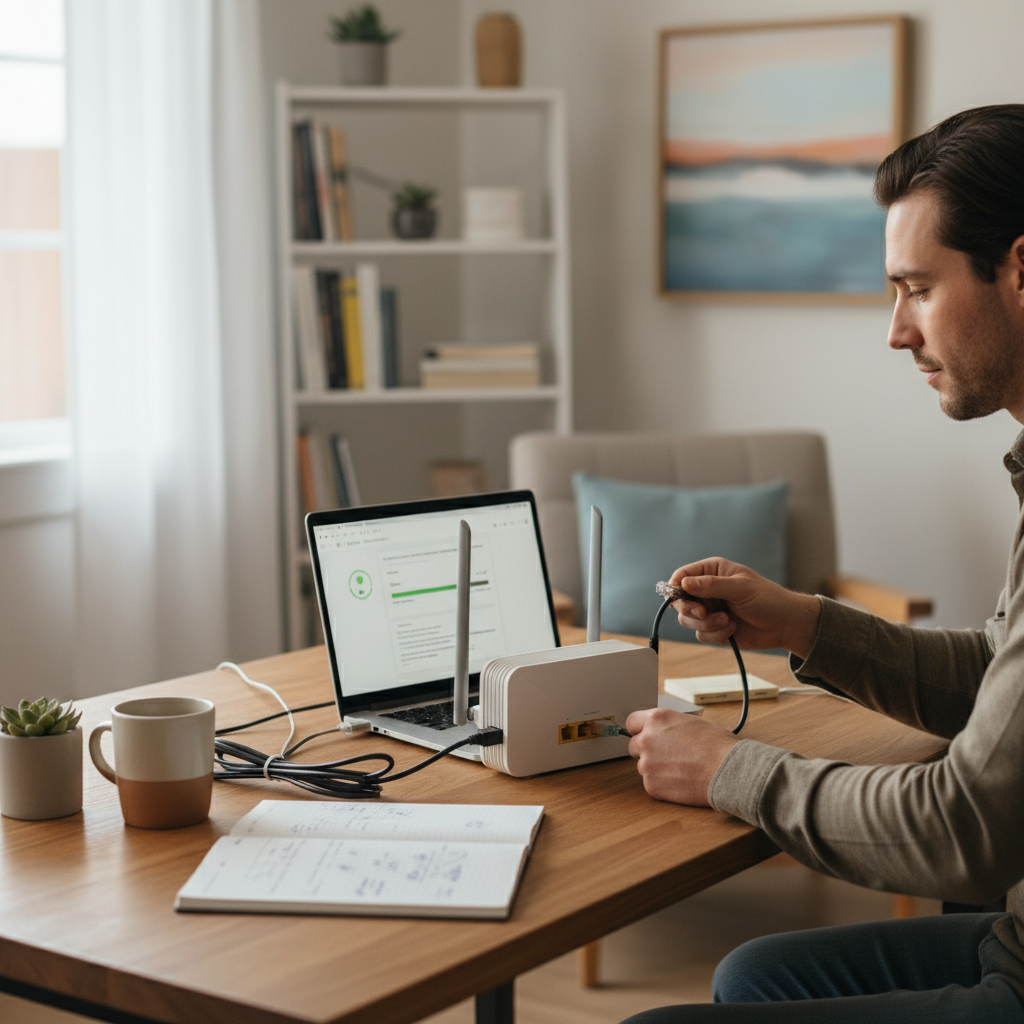
Yes, I know, it’s the classic advice. But honestly, it works. Restart your modem, your router, and your devices. This can clear temporary glitches and refresh your connection. Unplug your modem and router, wait 30 seconds, plug the modem back in, wait for it to fully boot up, and then plug the router in. Restart your phone, laptop, or whatever device you’re using. You’d be surprised how often this solves the problem.
Step 2: Check Your Internet Speed
Use an online speed test to see what speeds you’re actually getting. There are tons of free speed tests available (like Speedtest by Ookla). This will tell you if your internet speed matches what you’re paying for. If it’s significantly lower, you might need to contact your provider, but first, try the other steps.
Step 3: Check Your Router’s Placement
As mentioned before, where you place your router is crucial. Put it in a central, open location in your home, away from walls, metal objects, and other electronics. Elevating the router can also improve the signal range.
Step 4: Reduce Wi-Fi Congestion
If too many devices are connected, you’ll see a slowdown. Disconnect devices you’re not using, especially if they are streaming or downloading. You can also try prioritizing devices in your router settings (most routers have this option), giving priority to the devices you use most often for work or study. If you have any “smart” devices that are connected but not in use, try disconnecting them from the Wi-Fi. Many of these devices still use bandwidth in the background. If you have guests over, ask them to disconnect their devices to see if this helps.
Step 5: Update Your Router’s Firmware
Just like your phone or computer, your router needs updates to work correctly. Check your router’s settings (usually by typing its IP address into your browser) and see if there are any firmware updates available. This can improve performance and security.
Step 6: Change Your Wi-Fi Channel
Your router broadcasts on a specific Wi-Fi channel. If your neighbors’ routers are also using the same channel, it can cause interference. You can change your Wi-Fi channel in your router settings. There are apps that can help you find the least congested channel. This can sometimes make a big difference, especially in apartments or densely populated areas.
Step 7: Check for Malware
Malware can slow down your internet and use your bandwidth without you knowing it. Run a scan with a reputable antivirus program to check for any infections.
Step 8: Clear Your Browser Cache and Cookies
Over time, your browser accumulates temporary files that can slow things down. Clearing your cache and cookies can improve browsing speed. Go to your browser settings and look for the option to clear browsing data.
When to Call in the Professionals
If you’ve tried all the steps above, and your internet is still slow, it might be time to contact your internet service provider (ISP). There could be a problem with the service itself. They can check the connection from their end and potentially send a technician to your home. Also, if you suspect there’s a problem with your modem or router, it might be best to have them checked or replaced. Don’t be afraid to ask for help!
Preventing Slow Internet: Long-Term Habits for a Faster Connection
Wouldn’t it be great to avoid this problem altogether? Here are some habits to cultivate for a consistently faster internet experience.
1. Regularly Reboot Your Router
Make it a routine. Reboot your router once a week (or even more often if you’re a heavy user). This can prevent minor glitches from accumulating and slowing things down.
2. Keep Your Devices Updated
Regularly update the software on your devices (phones, tablets, laptops, etc.). Updates often include performance improvements that can speed things up. Also, keep your antivirus software up-to-date.
3. Manage Your Connected Devices
Be mindful of how many devices are connected to your Wi-Fi at the same time. Consider using a guest network for visitors to keep your primary network clear. You can also monitor your network usage through your router settings.
4. Secure Your Wi-Fi Network
Make sure your Wi-Fi network is password-protected and uses strong encryption. This prevents unauthorized access, which can slow down your connection. A strong password is key!
5. Consider a Better Internet Plan
If you consistently experience slow internet, even after troubleshooting, consider upgrading to a faster internet plan. Your needs might have changed, and you might need more bandwidth. Shop around and see what’s available in your area. This is especially true if more people are using the internet more often in your house.
Frequently Asked Questions (Real-World Answers)
Here are some of the questions people ask when they’re struggling with slow internet:
1. Why is my internet fast sometimes and slow other times?
This can be due to several factors, including network congestion (more people using the internet at peak times), interference, or your internet provider’s service fluctuations. Check your speed at different times of the day to see if there’s a pattern.
2. Could my neighbor be using my Wi-Fi?
If your Wi-Fi isn’t password-protected, it’s possible. Even if it is password-protected, it could still be vulnerable if you are using an easy to guess password. Check your router’s settings to see a list of connected devices. If you see any devices you don’t recognize, it’s time to change your password.
3. Does my router’s age affect my internet speed?
Yes, older routers may not support the latest Wi-Fi standards and technologies, which can limit your speed. Newer routers offer better performance and range. It might be time for an upgrade.
4. How much internet speed do I really need?
It depends on your usage. For basic browsing and email, you might be fine with a slower speed. For streaming, gaming, and video conferencing, you’ll need a faster plan. Check what speeds your provider offers and base your decision on that.
5. Can a VPN slow down my internet?
Yes, a VPN (Virtual Private Network) can sometimes slow down your internet speed because it encrypts your internet traffic and routes it through a server. The speed reduction depends on the VPN server’s location and the VPN provider’s infrastructure. If you’re not using it for security reasons, try disabling it to see if it makes a difference.
6. What causes Wi-Fi interference?
Many things can interfere with your Wi-Fi signal. Microwaves, cordless phones, Bluetooth devices, and even other Wi-Fi networks in your area can cause interference. Try changing your Wi-Fi channel to avoid overlap with other networks.
7. Should I upgrade my modem?
If you’re upgrading your internet plan, you might need to upgrade your modem too. Make sure your modem supports the speeds you’re paying for. If it’s an older model, it might be the bottleneck. Contact your provider for recommendations.
8. Can I improve my Wi-Fi signal without buying anything?
Absolutely! You can try many things, such as repositioning your router, changing the Wi-Fi channel, and reducing interference from other devices. Rebooting your modem and router is a great place to start. Sometimes, simply moving your router to a higher location or away from walls can greatly improve the signal strength.