
Ugh, that buffering circle of doom. We’ve all been there. You’re trying to stream a movie, video call a friend, or even just browse the web, and the internet crawls to a standstill. It’s enough to make you want to throw your laptop out the window. But before you go full Hulk on your router, let’s take a deep breath and figure out why your Wi-Fi is slow and, more importantly, how to fix it. I’ve been there, wrestled with it, and learned a thing or two over the years. This isn’t a tech manual, it’s real-world advice from someone who’s felt your frustration.
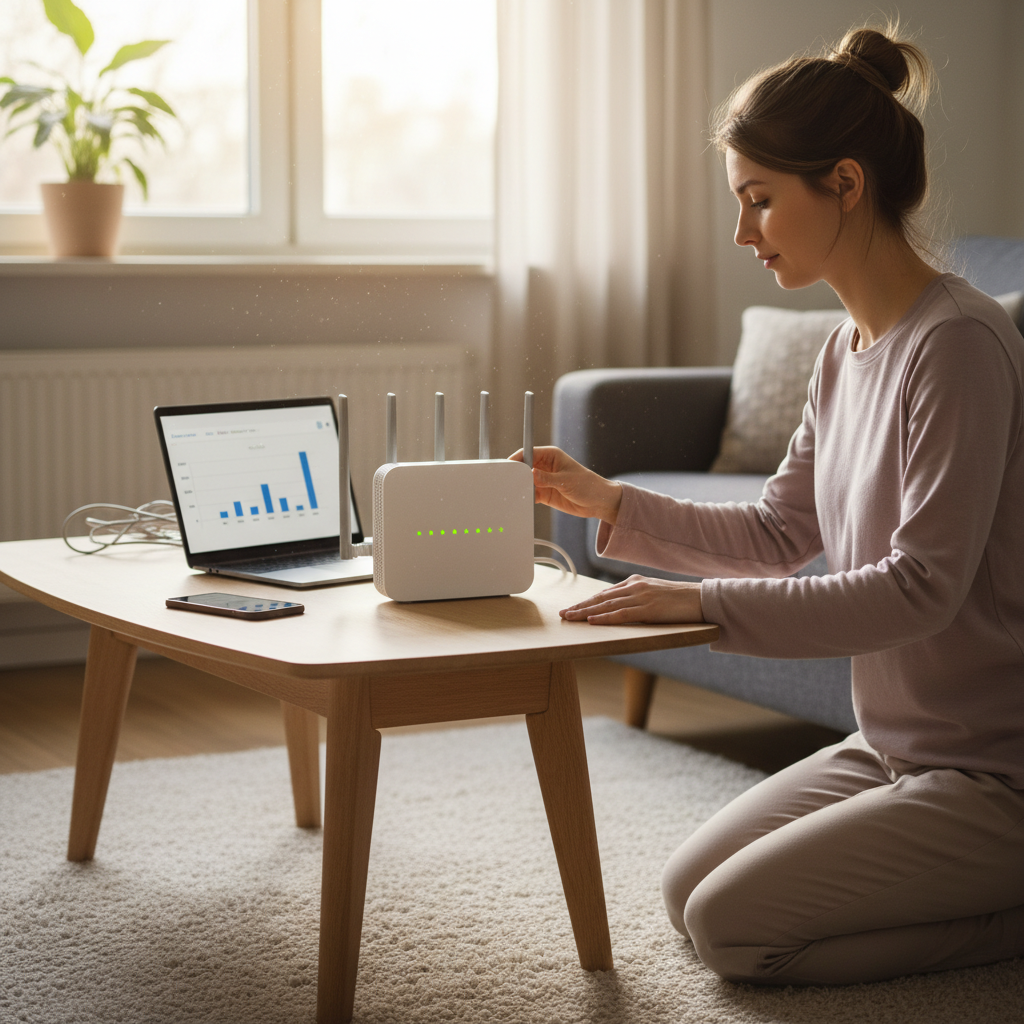
Why Is My Wi-Fi Slow? Decoding the Mystery
So, what’s causing this digital molasses? There are several culprits, and often, it’s a combination of them. Let’s break down the most common reasons:
1. Your Router is Old and Outdated
Think of your router as the heart of your home network. Just like any piece of tech, it gets old. Older routers might not support the latest Wi-Fi standards (like Wi-Fi 6 or 7), which means they can’t handle the speeds and demands of modern devices. If your router is more than a few years old, it’s likely time for an upgrade.
2. Too Many Devices Hogging the Bandwidth
Got a house full of smart TVs, phones, tablets, and gaming consoles? Each device uses bandwidth. The more devices connected, the slower the speeds, especially if they’re all doing something data-intensive like streaming or gaming.
3. Router Placement: The Unsung Hero
Where your router sits matters a lot. If it’s tucked away in a closet, behind a TV, or on the floor, its signal is struggling to reach every corner of your home. Walls, furniture, and other objects can block the Wi-Fi signal.
4. Interference is a Real Thing
Your Wi-Fi signal is like a radio wave, and it can get jammed by other devices using the same airwaves. Microwaves, Bluetooth devices, baby monitors, and even other Wi-Fi networks nearby can cause interference.
5. You’re Too Far From the Router
This one seems obvious, but the farther you are from the router, the weaker the signal.
6. Your Internet Plan Isn’t Fast Enough
Sometimes, the problem isn’t your Wi-Fi, but your internet plan. If you’re paying for a slow speed, you’ll get slow speeds, no matter how good your router is.
What People Do Wrong (and How to Avoid It)
Now, let’s talk about what people *think* will fix the problem, but often doesn’t.
Myth 1: Rebooting Your Router is the Only Solution
While restarting your router is a good first step (and often works!), it’s not always the *only* solution. It’s like taking a painkiller for a headache—it helps, but doesn’t solve the underlying issue.
Myth 2: “My ISP is the Problem!”
Sometimes, yes, your internet service provider (ISP) might be the problem. But before you start yelling at customer service, make sure it’s not something you can fix yourself. Run a speed test (more on that later) to check your actual speeds.
Myth 3: Buying the Most Expensive Router is Always Best
A top-of-the-line router can be overkill if you don’t have a fast internet plan or a huge house. You need a router that fits your specific needs.
Step-by-Step Fixes for Your Slow Wi-Fi
Alright, let’s get down to the nitty-gritty and fix this.
Step 1: The Classic Reboot
Unplug your modem *and* your router. Wait a full 60 seconds. Plug the modem back in and wait for it to fully boot up (usually a few minutes). Then, plug the router back in and let it do its thing. This simple step can resolve a surprising number of issues. It’s like a system reset for your network. For more information, check out “The Unsung Hero of Home Tech: Why Rebooting Your Router Isn’t Just Tech Support Advice“.
Step 2: Run a Speed Test
This is crucial. Go to a website like [Speedtest](https://www.speedtest.net/) or Google’s built-in speed test and run a test. Make sure you’re connected to your Wi-Fi network. The test will show you your download and upload speeds. Compare those speeds to what you’re paying for from your ISP. If your speeds are significantly lower, you know there’s a problem.
Step 3: Check Your Router’s Location
Move your router to a more central, elevated, and open location. Get it off the floor and away from walls, metal objects, and appliances. Experiment with different spots to see what works best.
Step 4: Reduce Interference
Try moving your router away from devices that could be causing interference like microwaves and cordless phones. If your router has external antennas, try positioning them in different directions (one vertical, one horizontal).
Step 5: Manage Your Devices
If you have a lot of devices connected, try disconnecting some to see if that improves speeds. You might also be able to prioritize devices in your router’s settings, giving your most important devices (like your work laptop or streaming device) priority.
Step 6: Update Your Router’s Firmware
Outdated firmware can cause all sorts of problems. Check your router’s settings (usually by typing its IP address into a web browser) and look for a firmware update. Installing the latest firmware can often fix bugs and improve performance.
Step 7: Check Your Cables
If you’re using a wired connection, make sure your Ethernet cables are securely plugged in and not damaged. A frayed or bent cable can slow things down.
When to Call for Professional Help
Sometimes, the problem is beyond a DIY fix. Here’s when to consider calling in the experts:
- **Persistent Slow Speeds:** If you’ve tried all the steps above and your internet is still slow, it might be an issue with your ISP or your equipment.
- **Hardware Failure:** If your router is old or damaged, it might need to be replaced.
- **Complex Network Issues:** If you have a complicated home network setup, a tech support expert can help diagnose the problem.
Long-Term Prevention: Staying Ahead of the Slow Wi-Fi Game
Once you’ve fixed your slow Wi-Fi, you don’t want it to come back. Here’s how to keep things running smoothly:
- **Keep Your Router Updated:** Regularly check for and install firmware updates.
- **Monitor Your Network:** Keep an eye on your internet speeds and run speed tests occasionally.
- **Upgrade Your Plan if Needed:** As your needs change (more devices, higher-quality streaming), you might need a faster internet plan.
- **Consider a Mesh Wi-Fi System:** For larger homes, a mesh system can provide more consistent coverage.
Frequently Asked Questions (FAQs)
Here are some common questions about slow Wi-Fi, answered simply:
- **Why is my Wi-Fi suddenly so slow?** It could be a variety of reasons: too many devices connected, router issues, interference, or problems with your ISP. Start with a reboot and then troubleshoot from there.
- **How can I improve Wi-Fi signal strength?** Place your router in a central, elevated, and open location, away from obstructions and interference.
- **Do Wi-Fi extenders really work?** They can help, but they aren’t always a perfect solution. A mesh Wi-Fi system often provides better performance.
- **Should I upgrade my router?** If your router is old, or you’re experiencing frequent problems, an upgrade can make a big difference. Check the latest reviews from trusted sources like Energy Revolution System.
- **How do I find out my router’s IP address?** Usually, you can find it by looking in your router’s manual or by searching online for “how to find my router’s IP address.”
- **My internet speed is slow, but my speed test is good. What gives?** The problem might be with the device you’re using or the website you’re visiting. Try testing with a different device and visiting different websites.
- **Can too many devices slow down my Wi-Fi?** Absolutely! Each device uses bandwidth.
- **Is it my internet provider or my router?** Run speed tests, and if the speeds are slow *even when wired directly to your modem*, then it might be your internet provider. If the speeds are slow *only when connected via Wi-Fi*, the issue is more likely with your router.
So, there you have it. A practical, experience-based guide to fixing slow Wi-Fi. Now, go forth and enjoy a faster, more reliable internet connection.