
Ugh, that sinking feeling. You’re out, about to meet a friend, or need to call a cab, and BAM! Your phone battery is at 10%. It’s like your digital lifeline is slowly being choked. And honestly, it’s one of the most frustrating things that can happen these days. I’ve been there countless times, and believe me, it’s annoying, especially when you feel like you’ve barely used the thing.
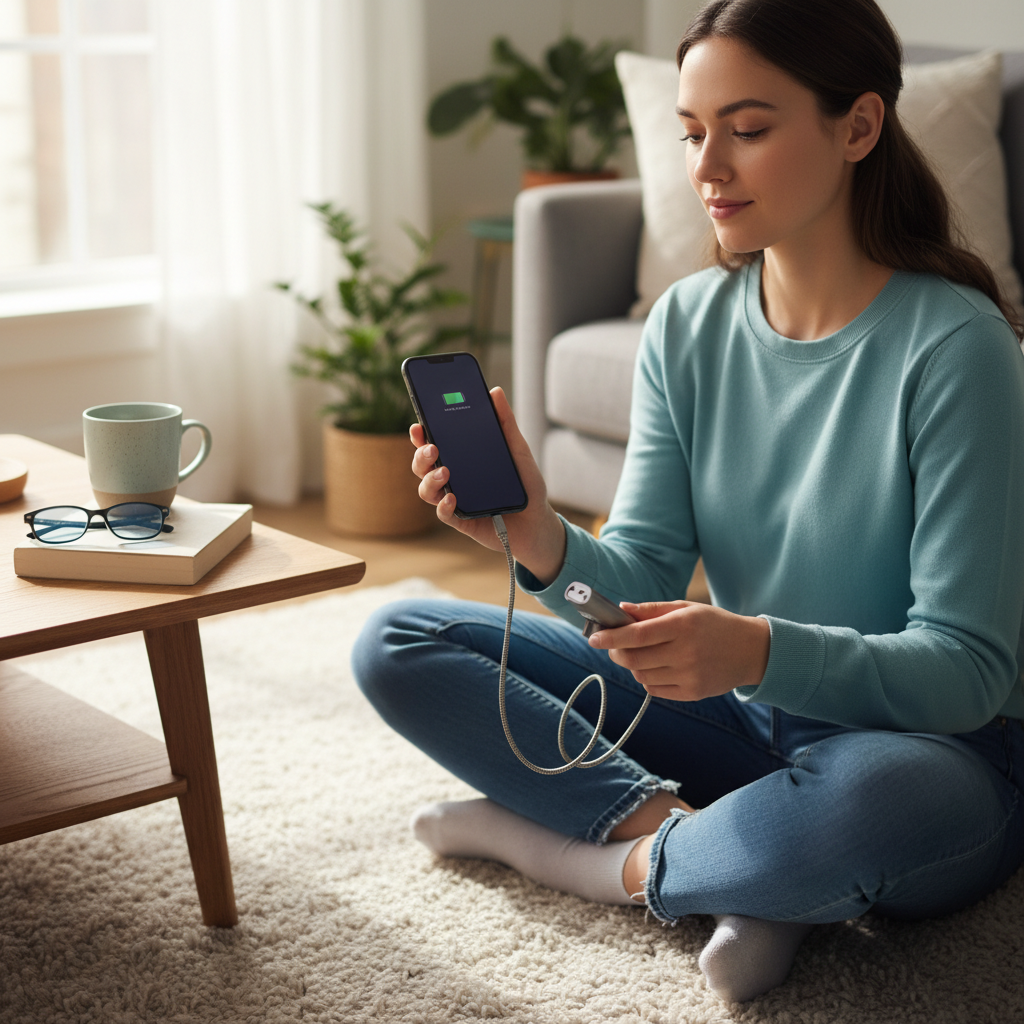
This isn’t a tech manual with a bunch of jargon that makes your head spin. This is a real-life guide, from someone who’s spent years wrestling with this very problem. We’ll go through the usual suspects, the things that drain your battery, what you might be doing wrong, and, most importantly, how to fix it.
Why Does My Phone Battery Drain So Fast? The Usual Suspects
First off, let’s get the obvious out of the way. Phone batteries, like us, get old. They degrade over time. That shiny new phone you got last year? Its battery probably isn’t holding a charge as long as it did when it was fresh out of the box. But beyond that natural aging, several things can cause your battery to vanish faster than free samosas at a party.
- The Screen: The brighter your screen, the more juice it sucks. And let’s be honest, we all love a bright, vibrant display, right?
- Apps Gone Wild: Some apps are notorious battery hogs. Think games, social media apps (looking at you, Instagram!), and anything that constantly updates in the background.
- Location Services: Ever noticed your phone getting warm when you’re using Google Maps? That’s because location services are a major battery drain.
- Poor Cellular Signal: Constantly searching for a signal? Your phone works overtime, zapping battery life in the process.
- Old Battery: As mentioned earlier, batteries have a lifespan. The more you charge and discharge them, the less capacity they have.
What You’re Probably Doing Wrong (And How to Fix It)
Okay, so now you know the usual culprits. But what are *you* doing that might be making things worse? Here are some common mistakes and how to fix them:
- Leaving the Brightness Up: This is a big one. We often forget to adjust the brightness.
- The Fix: Turn on auto-brightness. Your phone will adjust the screen’s brightness based on your environment. If you want more control, manually adjust it.
- Background App Refresh Gone Wild: Some apps are constantly refreshing in the background, even when you’re not using them.
- The Fix: Go into your phone’s settings (usually under “Battery” or “General”), and limit background app refresh. Turn it off for apps you don’t need constantly updated.
- Location Services on Everywhere: Do you really need every app to know your location *all* the time?
- The Fix: Go through your app settings and limit location access. Choose “While Using the App” or “Never” for apps that don’t need to know your location constantly.
- Charging Habits: Charging your phone to 100% and letting it drain to 0% regularly can actually shorten your battery’s lifespan over time.
- The Fix: Aim to keep your battery between 20% and 80%. It’s better to top it up frequently than to let it run all the way down.
- Using the Wrong Charger: Using a cheap, non-certified charger can damage your battery.
- The Fix: Stick with the charger that came with your phone or use a reputable brand.
Myths and Misconceptions About Phone Batteries
The internet is full of battery myths. Let’s bust a few:
- Myth: You have to fully charge and discharge your battery to “calibrate” it.
- Fact: This was true for older battery technologies, but not for modern lithium-ion batteries. In fact, doing this regularly can actually harm your battery.
- Myth: Fast charging is bad for your battery.
- Fact: Modern phones are designed with fast charging in mind. They manage the charging process to prevent damage.
- Myth: Turning off Wi-Fi and Bluetooth all the time saves a lot of battery.
- Fact: It helps, but the impact is often minimal unless you’re constantly in an area with poor Wi-Fi or Bluetooth signal.
Step-by-Step Practical Fixes to Save Your Battery
Alright, let’s get down to brass tacks. Here’s a practical, step-by-step approach to extending your phone’s battery life:
- Check Your Battery Usage: Go to your phone’s settings (usually under “Battery”) and see which apps are using the most power. This is the best place to start.
- Dim Your Screen: As mentioned earlier, brightness is a big drain.
- Disable or Limit Background App Refresh: Stop apps from constantly updating in the background.
- Manage Location Services: Only give apps location access when they need it.
- Turn Off Unused Connectivity: Wi-Fi, Bluetooth, and mobile data can drain battery when not in use, especially if searching for a signal.
- Use Battery Saver Mode: Most phones have a battery saver mode that limits background activity and other power-hungry features.
- Update Your Software: Software updates often include battery optimization improvements.
What to do: If you see an app using a lot of battery, and you barely use it, either uninstall it or restrict its background activity.
What to do: Turn on auto-brightness or manually lower the brightness. Most phones have a quick settings option in the notification shade.
What to do: Go to your phone’s settings and limit background app refresh. Turn it off for apps you don’t need to stay updated.
What to do: Review app permissions and restrict location access to “While Using the App” or “Never” for apps that don’t need constant location tracking.
What to do: Turn off Wi-Fi and Bluetooth when you’re not using them. Disable mobile data when you have Wi-Fi available.
What to do: Turn on battery saver mode when your battery gets low. You can usually find this in your quick settings or battery settings.
What to do: Make sure your phone’s operating system and apps are up to date. Go to your phone’s settings and check for updates.
When to Get Professional Help
Most battery drain problems can be fixed with the steps above. However, there are times when you might need professional help.
- Rapid Battery Drain Regardless of Settings: If your battery is draining extremely fast even after adjusting all the settings, there might be a hardware problem.
- Battery Swelling: If your phone’s battery is swollen (you might see the screen bulging), stop using the phone immediately and get it checked by a professional. This can be a safety hazard.
- Old Battery: If your phone is old (more than a few years) and the battery is still terrible, you might need a battery replacement.
Long-Term Prevention Tips to Keep Your Phone’s Battery Healthy
The goal is to keep your battery healthy in the long run. Here’s what you can do:
- Charge Smart: Avoid charging to 100% and letting it drain to 0% regularly. Keep your battery between 20% and 80% as much as possible.
- Avoid Extreme Temperatures: Don’t leave your phone in direct sunlight or in a freezing car. Extreme temperatures can damage your battery.
- Use a Quality Charger: Stick with the charger that came with your phone or use a reputable brand.
- Clean Up Old Files: Delete old photos, videos, and files. The less your phone has to store, the better.
- Monitor App Usage: Regularly check which apps are using the most battery. Delete apps you don’t use or find alternatives.
The Bottom Line
Dealing with a fast-draining phone battery is frustrating, no doubt. But with these steps, you can take control and get your phone’s battery life back on track. Remember, it’s about making small changes and being mindful of how you use your phone. Trust me, these tips have saved my sanity many times, and they can help you too. So, go forth and conquer that battery drain!
For more information on other home appliances that may have similar issues, check out this article.
FAQ: Your Burning Questions Answered
Here are some of the most common questions people ask about phone battery drain:
Q: My phone is new, but the battery drains quickly. What gives?
A: Even new phones can have battery drain issues. Check which apps are using the most battery in your settings. Some apps might be poorly optimized or have background activity that’s draining your battery. Also, ensure your screen brightness isn’t too high, and consider turning on auto-brightness.
Q: Does leaving my phone plugged in overnight damage the battery?
A: Modern phones are designed to stop charging once they reach 100%. However, it’s generally better to avoid leaving your phone plugged in all the time. Frequent full charges can slightly reduce battery lifespan over the long term. Aim to charge your phone when it’s around 20% and unplug it when it reaches 80%.
Q: Is it okay to use my phone while it’s charging?
A: Yes, it’s generally fine, but it might take longer to charge as the phone will be using power while it’s charging. Try to avoid heavy usage like gaming while charging, as this can generate heat, which can negatively affect the battery.
Q: Should I turn off Wi-Fi and Bluetooth to save battery?
A: Yes, turning off Wi-Fi and Bluetooth when you’re not using them can help save some battery. Especially when you’re in an area with a weak signal. It’s not a huge difference, but every little bit helps!
Q: My phone gets really hot. Is that bad?
A: Yes, excessive heat is bad for your battery. Heat can degrade the battery’s lifespan. If your phone gets very hot, try closing some apps, turning down the brightness, and avoiding direct sunlight.
Q: How often should I replace my phone’s battery?
A: It depends on how you use your phone, but generally, a phone battery starts to show significant degradation after 2-3 years. If you notice your battery life has decreased dramatically, a battery replacement might be a good idea.
Q: Does using dark mode save battery?
A: Dark mode can save battery, especially on phones with OLED screens. It does this because OLED screens turn off pixels to display black, which uses less power. On LCD screens, the difference is negligible.