
Ugh. There’s nothing quite like settling in for a movie night, grabbing your popcorn, and then…your smart TV decides to act like a moody teenager. The screen freezes, the apps crash, or the remote suddenly stops cooperating. Sound familiar? I’ve been there, more times than I care to admit. It’s frustrating, especially when you just want to relax. Let’s face it, smart TVs are supposed to make our lives easier, not give us a tech headache.
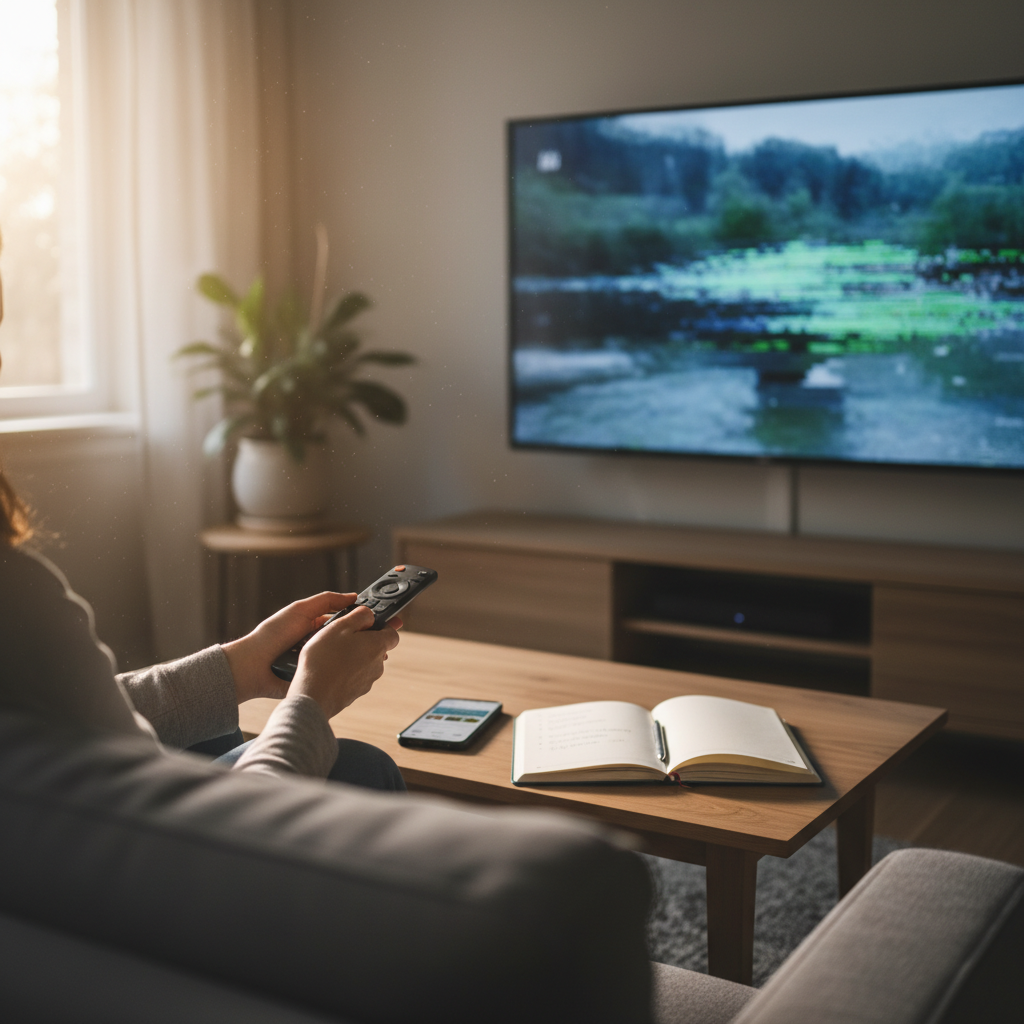
This isn’t some high-tech problem; it’s a common one. And the good news is, most of the time, you can fix it yourself. No need to call a technician (yet!). Let’s dive in and troubleshoot those annoying smart TV glitches.
Why Is My Smart TV Acting Up? The Usual Suspects
Before we start mashing buttons, let’s understand why these problems happen. It’s usually one of a few common culprits:
- Software Glitches: Think of your TV’s software like your phone’s operating system. It can get buggy, especially with updates.
- Network Issues: Your Wi-Fi connection is the lifeline of your smart TV. A weak signal, or an overloaded network, can cause all sorts of problems.
- Overheating: Believe it or not, TVs can overheat, especially if they’re in a confined space.
- App Problems: Streaming apps crash. It’s just a fact of life.
- Outdated Firmware: TV manufacturers release updates to fix bugs and improve performance. If you ignore these, your TV might start acting up.
Now, let’s look at what usually goes wrong when people try to fix this. It’s often a case of going too extreme right away. This is where most people get stuck.
The Mistakes We Make When Trying to Fix a Smart TV
I’ve made my fair share of mistakes. Here’s what I’ve learned to avoid:
- Panicking and Blaming the TV: The first instinct is to assume the worst – that your TV is dying or that you need a new one. Don’t! In most cases, it’s a simple fix.
- Ignoring the Obvious: We often skip the easiest solutions, like simply restarting the TV.
- Trying Complex Fixes Too Soon: Resetting your TV to factory settings should be the last resort. You could lose all your settings and have to start over.
- Assuming the Problem is the TV’s Fault: It could be your internet, a faulty HDMI cable, or even the streaming service itself.
Here’s the mistake almost everyone makes: they start randomly clicking buttons and changing settings without any plan. That just leads to more frustration.
Step-by-Step Guide to Fixing Your Smart TV Problems
Okay, take a deep breath. Let’s start with the basics. These fixes work for most smart TVs, regardless of the brand. I’ve personally tried these on Samsung, LG, Sony, and TCL TVs.
1. The Power Cycle: Your First Line of Defense
This is the simplest, and often the most effective, fix. Think of it as a “reboot” for your TV.
- Turn off your TV: Use the power button on the remote or the TV itself.
- Unplug the TV: This is crucial! Unplug the TV from the wall outlet.
- Wait a Minute (or Two): Give it some time to fully discharge. This clears the memory.
- Plug it back in: Plug the TV back into the wall.
- Turn it on: See if the problem is gone.
If this works, you’re golden! If not, move on to the next steps.
2. Check Your Internet Connection
A slow or unstable internet connection is a major culprit for smart TV issues. Here’s what to do:
- Run a Speed Test: Use your phone or computer to test your internet speed. There are plenty of free speed test websites available. Check what speeds your provider promised you.
- Restart Your Router and Modem: Unplug both your router and modem from the power outlet. Wait 30 seconds, plug the modem back in, wait for it to power up, and then plug the router back in.
- Check Your Wi-Fi Signal: Make sure your TV is close enough to your router, and there aren’t any obstacles (like thick walls) in between.
- Consider a Wired Connection: If possible, connect your TV directly to your router with an Ethernet cable. This will give you the most stable connection.
If your internet is the issue, you might need to contact your internet service provider (ISP). But before you do, try these steps first.
3. Update Your TV’s Software (Firmware)
TV manufacturers regularly release software updates to fix bugs and improve performance. Make sure your TV is up to date.
- Go to Settings: Find the “Settings” menu on your TV. The location varies depending on the brand. Look for an icon that looks like a gear or cog.
- Look for “Software Update” or “Firmware Update”: It might be in the “Support” or “About” section.
- Check for Updates: Select the option to check for updates. The TV will search for and install any available updates.
- Restart Your TV: After the update is complete, restart your TV.
4. Clear the Cache of Your Streaming Apps
Like on your phone, cached data can sometimes cause problems. Clearing the cache can help.
- Go to Settings: Again, find the “Settings” menu.
- Look for “Apps” or “Applications”: This section lists all the apps installed on your TV.
- Select the Problem App: Choose the streaming app that’s giving you trouble (Netflix, Hulu, etc.).
- Clear Cache: Look for an option to “Clear Cache.” This will remove temporary files that might be causing issues.
- Clear Data (If Necessary): If clearing the cache doesn’t work, you can try clearing the app’s data. This will reset the app to its default settings, so you might need to log back in.
5. Reset Your TV (Last Resort)
If nothing else works, you can try resetting your TV to its factory settings. This will erase all your settings and preferences, so it’s best to try everything else first. This is usually done in the Settings menu, under “General” or “Support.” Look for an option like “Reset” or “Factory Reset.” Follow the on-screen instructions.
When to Call for Professional Help
Sometimes, the problem is bigger than what you can fix at home. Here are some signs it’s time to call a technician:
- The TV won’t turn on at all: This could be a hardware issue.
- The screen is physically damaged: Cracks, lines, or other damage require professional repair.
- You’ve tried all the fixes, and nothing works: It might be a motherboard or other internal component issue.
Don’t be afraid to seek professional help if you’re not comfortable troubleshooting. It’s better than risking further damage.
Long-Term Prevention Tips: Keep Your TV Happy
Okay, you’ve fixed the problem (hopefully!). Now, how do you prevent it from happening again? Here’s what I do:
- Keep it Clean: Dust can damage electronics. Regularly dust your TV and the area around it. Check out this article for more on how dust can mess up your tech.
- Ensure Good Ventilation: Don’t put your TV in a closed cabinet or tight space. Make sure there’s enough airflow to prevent overheating.
- Update Regularly: Keep your TV’s software and apps updated.
- Manage Your Apps: Delete apps you don’t use to free up space and reduce clutter.
- Invest in a Surge Protector: Protect your TV from power surges, which can damage the internal components.
The real fix usually starts with a little patience and a systematic approach. If you follow these steps, you’ll be back to enjoying your favorite shows in no time. And remember, don’t panic! Most smart TV problems are solvable.
FAQ: Smart TV Troubleshooter
Here are some of the most common questions I get about smart TVs. I’ve included the answers from experience, not some tech manual.
Q: My TV won’t connect to Wi-Fi. What do I do?
A: Start with the basics: make sure your Wi-Fi router is turned on and that other devices in your home can connect to the internet. Then, on your TV, go to the network settings and try reconnecting. Sometimes, restarting the router and the TV is all it takes.
Q: My TV remote isn’t working. What can I do?
A: First, check the batteries! Then, try pointing the remote directly at the TV and see if that helps. If it still doesn’t work, try restarting the TV. There could be an issue with the remote’s signal or the TV’s receiver.
Q: My apps keep crashing. What’s going on?
A: App crashes are common. Try clearing the cache and data for the app in your TV’s settings. Also, make sure the app and your TV’s software are up to date.
Q: The picture on my TV is blurry. How do I fix it?
A: Check your TV’s picture settings, like brightness, contrast, and sharpness. Make sure your TV is set to the correct resolution for your content. If you’re using an external device (like a cable box), check its settings as well.
Q: My TV is stuck on the loading screen. What should I do?
A: This can be frustrating. Try restarting your TV by unplugging it from the power outlet and waiting a minute or two. If that doesn’t work, you might need to reset your TV to its factory settings. (Be prepared to re-enter your settings and preferences!).
Q: Why is my TV so slow?
A: Slow performance is often related to a weak Wi-Fi signal, outdated software, or a full cache. Check your internet connection, update your TV’s software, and clear the cache of your apps. You might also have too many apps installed.
Q: How often should I update my smart TV?
A: It’s best to update your smart TV’s software whenever a new update is available. These updates often include bug fixes and performance improvements, which can help keep your TV running smoothly.
Q: My TV overheats, what should I do?
A: Ensure your TV has adequate ventilation. Make sure it’s not in a closed cabinet or too close to a wall. If it’s still overheating, consider getting a small fan to help circulate air around the TV.
Hopefully, this guide helps you get your smart TV back in shape. If you’re still stuck, don’t be afraid to ask a friend, search online (again!), or contact the manufacturer’s customer support. You got this!
Ready to go back to the Homepage?